{{g.topic}}{{g.level}}{{g.minutes}}
{{g.title}}
{{g.lead}}
{{g.progress}}{{g.allLabel}}
Jump to section
{{sec.h}}
Tip:
Short written guides for the things people make most. Each one matches what you’ll see in the studio.
{{g.lead}}
Tip:
The full studio on iPad and Android tablets, made for finger and pen. A mouse and keyboard work too.
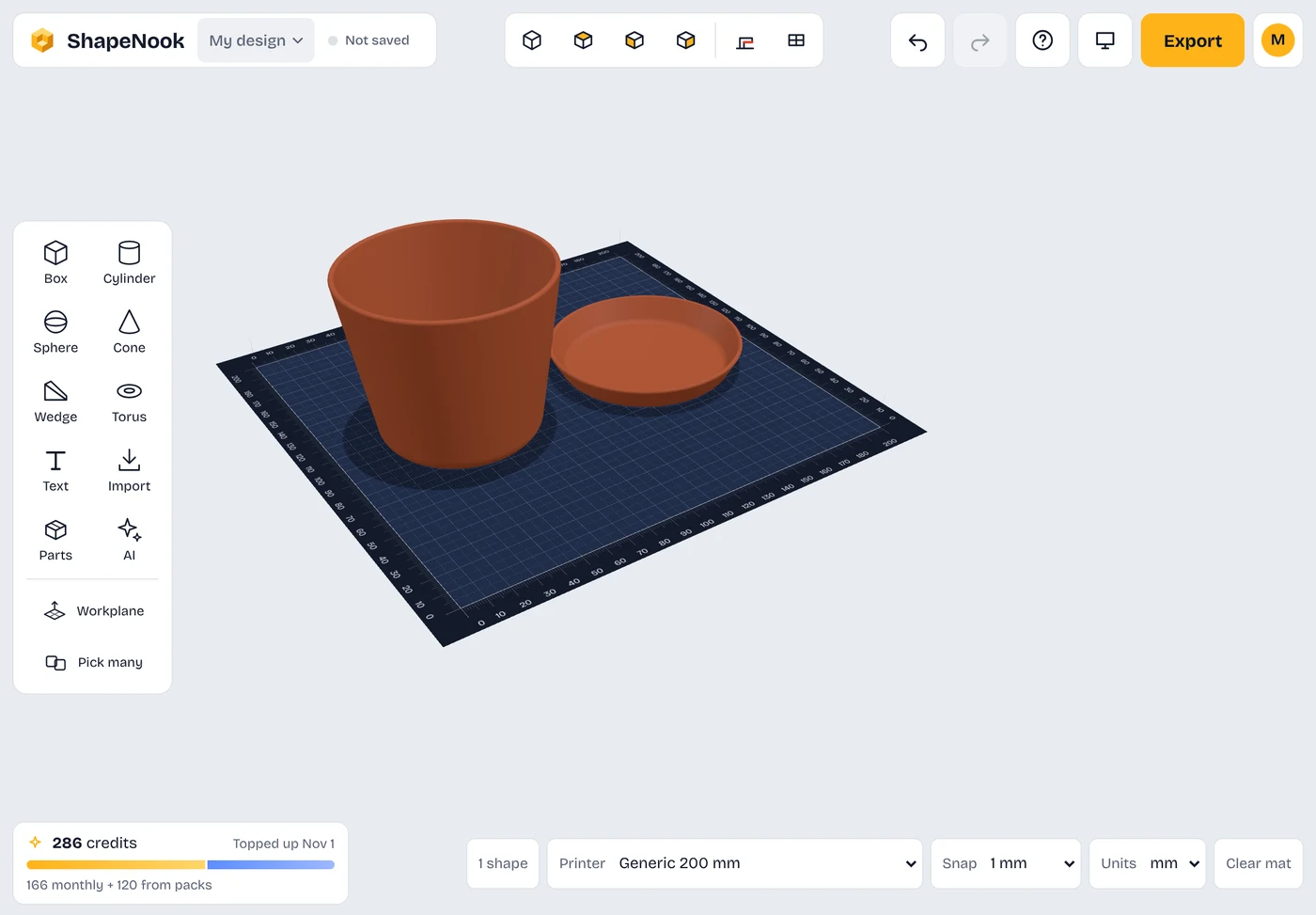
Drag on empty space to look around. Use two fingers to pan and zoom. The view buttons along the top snap back to a straight-on view.
Drag a shape from the left onto the mat, or tap it to drop one in. Drag a shape to move it, and use its handles to size it.
Press and hold on empty space, then drag a rectangle around the shapes you want. Or turn on Pick many and tap each one.
A selected shape shows its settings in the panel: size, color, Solid or Hole, a row of tools for it such as Paint, Cut and Rows, plus Copy, Duplicate, More and Delete at the bottom.
Apple Pencil and other pens work like a finger, with finer control for small handles. Connect a keyboard and mouse and the desktop controls and shortcuts work too.
The iPad app needs iPadOS 16.4 or later and is on the App Store. The Android app needs Android 10 or later and is in testing. You can also use the full studio in your tablet’s browser.
Any tablet that runs these versions works. A larger screen and a pencil help with small handles.