{{g.topic}}{{g.level}}{{g.minutes}}
{{g.title}}
{{g.lead}}
{{g.progress}}{{g.allLabel}}
Jump to section
{{sec.h}}
Tip:
Short written guides for the things people make most. Each one matches what you’ll see in the studio.
{{g.lead}}
Tip:
Cut holes, combine shapes and keep pieces together. This is how most real parts get made.
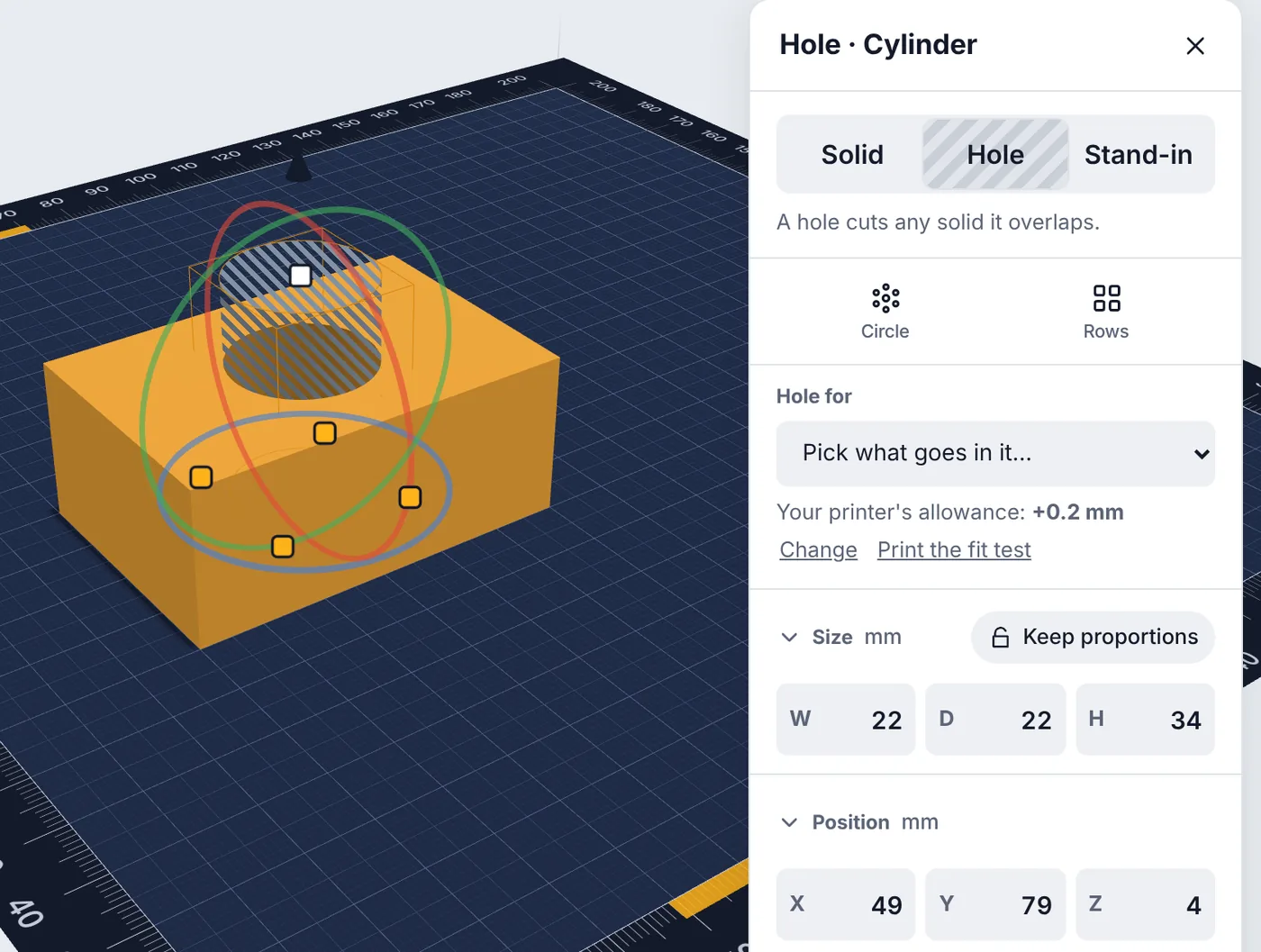
Select a shape and choose Hole in its panel, or press H. A hole cuts whatever solid it overlaps, so a cylinder pushed into a box makes a cup, and a thin box through a wall makes a slot.
With a hole selected, look under Make it a hole for and pick what goes in it, such as a screw, a nut or a magnet. ShapeNook sizes the hole for that part and makes it wider by your printer’s fit allowance, which starts at +0.2 mm. A plain hole you size yourself stays exactly the size you type.
With a mouse, drag a selection rectangle across empty space, or Shift-click each shape.
On a tablet, press and hold on empty space, then drag a rectangle around the shapes. Or turn on Pick many on the left and tap each one.
With two or more shapes selected, choose Group at the bottom of the panel, or press Ctrl+G (⌘G on a Mac). A group moves and resizes as one piece.
To change one piece inside a group, choose Edit parts at the bottom of the panel, or double-click (double-tap) the group. Ungroup in the same place, or Ctrl+Shift+G (⌘Shift+G), takes it apart again.
Select two or more shapes and a bar appears above them. Choose Align… (or press L), then click or tap one of the dots on the edges and centers to line the shapes up along it.
To put a shape back down on the mat or mirror it, choose More at the bottom of the panel, then Put down on the mat or Mirror left to right. With a keyboard, press D or M.
Tip: Ctrl+D (⌘D), or Duplicate in the panel, copies whatever is selected. It’s a quick way to make a row of matching holes.