{{g.topic}}{{g.level}}{{g.minutes}}
{{g.title}}
{{g.lead}}
{{g.progress}}{{g.allLabel}}
Jump to section
{{sec.h}}
Tip:
Short written guides for the things people make most. Each one matches what you’ll see in the studio.
{{g.lead}}
Tip:
Ready-made functional parts, from screws and nuts to hinges, joints and holders for things you own. Drop one in instead of drawing it.
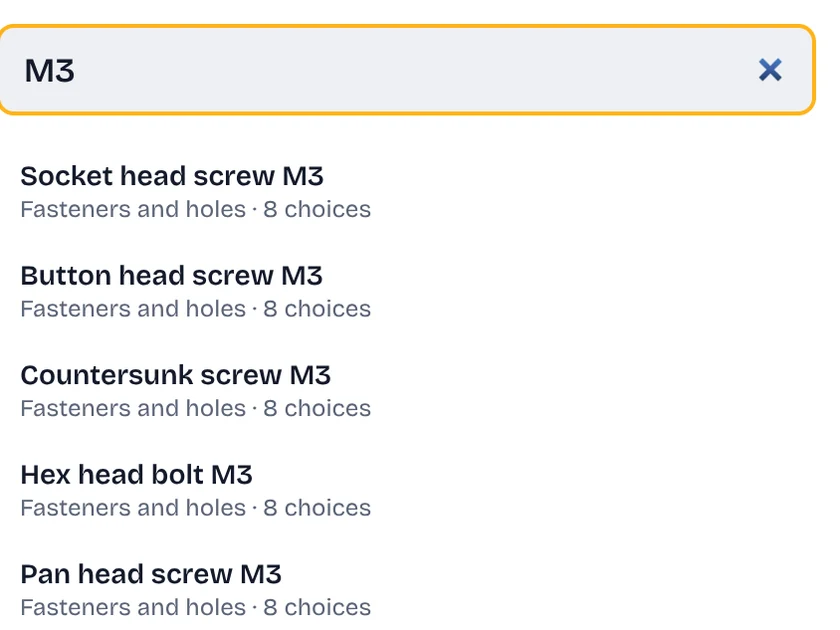
Choose Parts on the left. Search for what you need, like “M3”, “hinge” or “nut trap”, or browse by category.
Pick a part, choose a version if it has options, then choose Place on the mat. It lands on your mat like any other shape.
Move, rotate and size the part like any shape. Make it a Hole to cut a pocket for it, or group it with the rest of your design.
Everyday objects has pockets, see-through stand-ins and holders for LED tea lights, batteries, coins, tracker tags, pens and more. Design around real objects shows how. Joints and connectors has dovetails, puzzle joints, alignment pins and a flush screw cap: see Join parts and add a flush screw cap.
Fasteners and holes, joints, and the pockets and stand-ins for everyday objects and toys are free for everyone: 1,443 parts. ShapeNook Plus unlocks every part in the library, 3,945 in all, including the holders, the screw-top jars and the flush screw cap. Free accounts can still browse and preview every part.